
Capture
Capture what matters, in the format it needs.
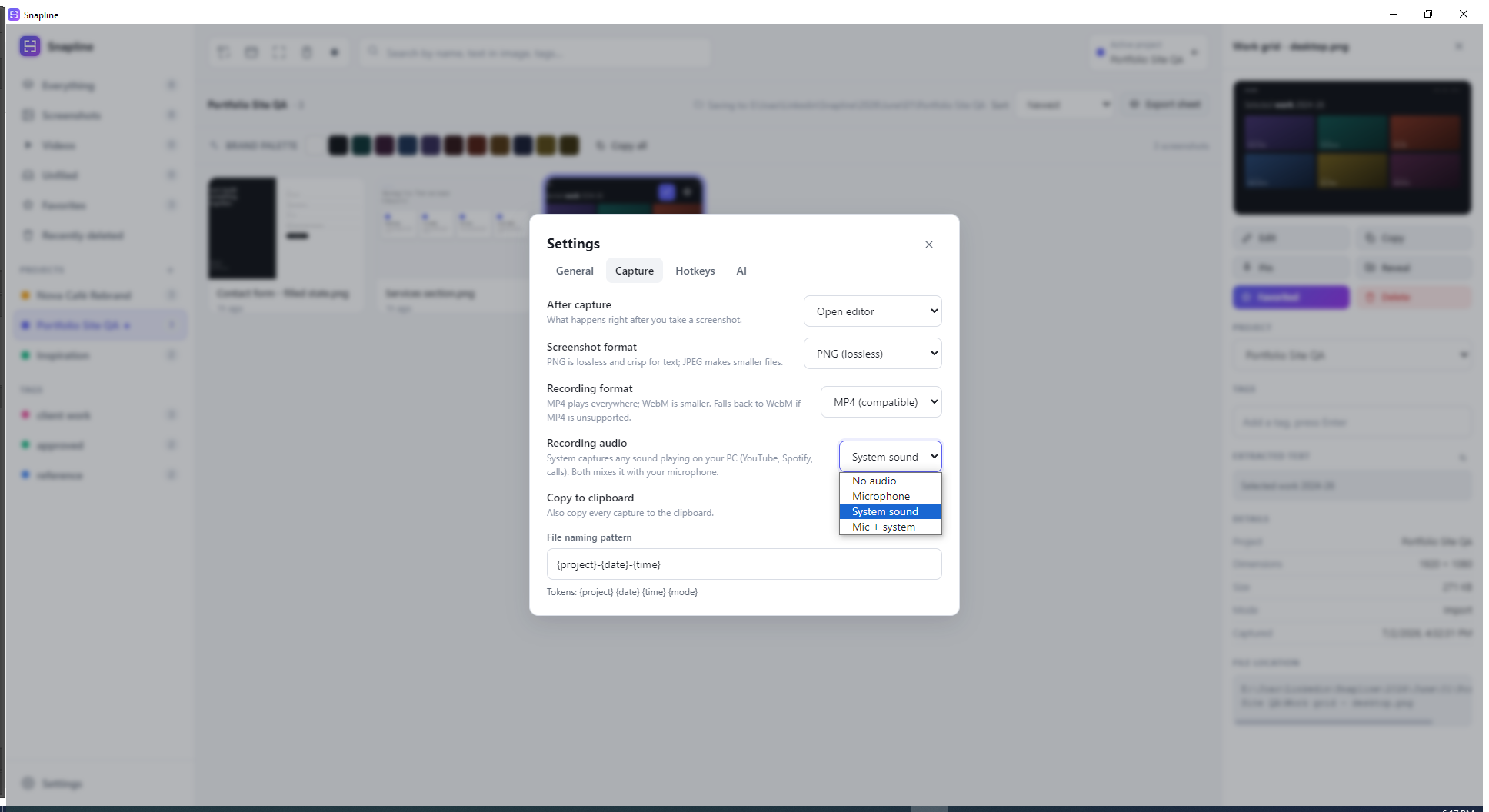
Use shortcuts for regions, windows and full screens, or record an MP4 with microphone, system audio, both, or no audio. Every new file goes straight into the active project.
 Published Product · Windows
Screenshots and screen recordings, organized into projects. Local-first: captures save to your own folders, and offline OCR stays on your PC.
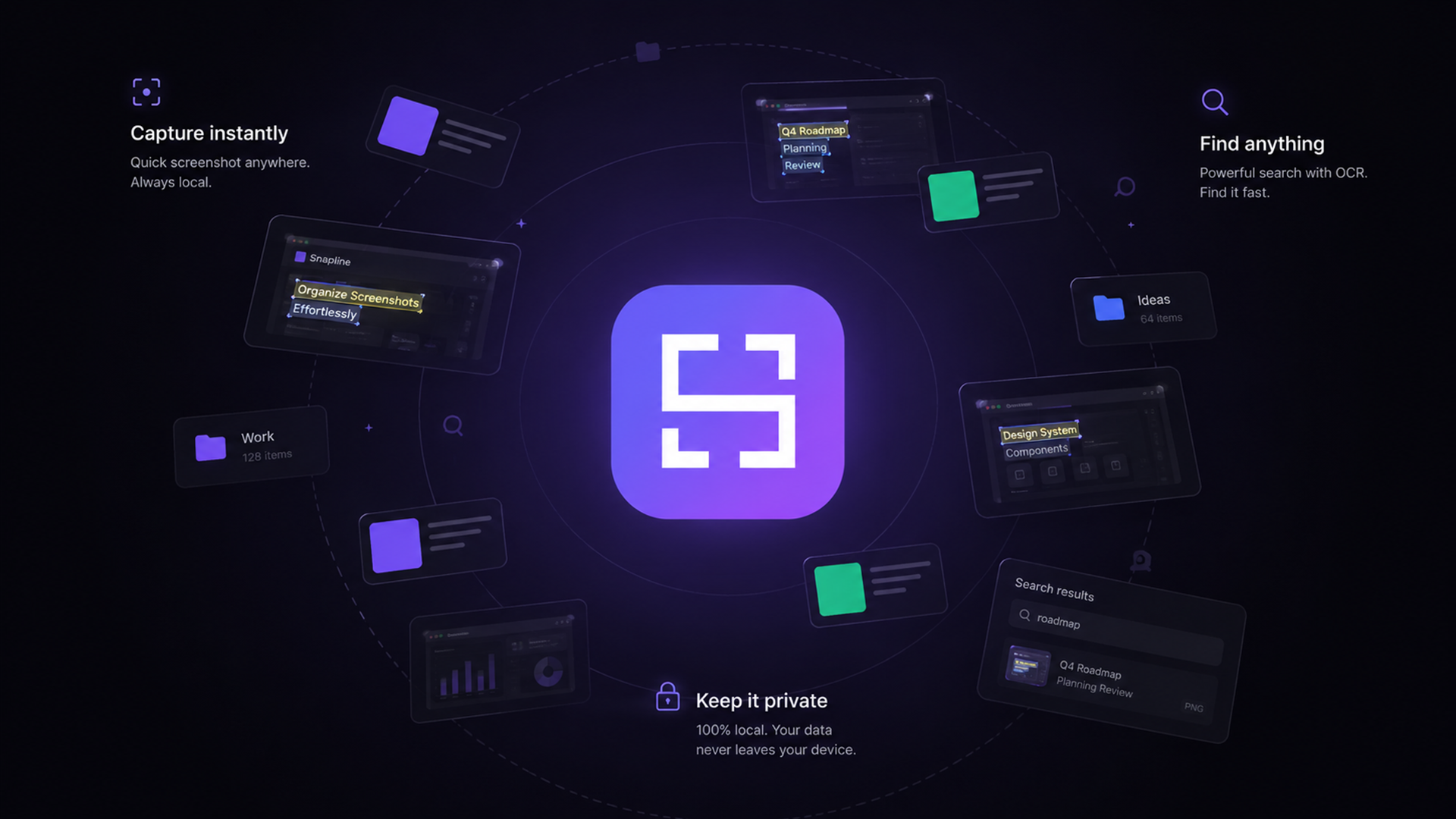
A short film I made entirely in code: type, motion and sound, built from the product’s own brand. Turn the sound on. The full film follows below.
How it was made →Capture, organize, find and polish, with core files stored in folders you control.
Privacy clarification: “No cloud” in the existing trailer refers to capture storage and offline OCR. Optional AI enrichment and Auto Redact are off by default; if enabled, only the selected image is sent directly to the AI provider you configure. Snapline’s developer does not receive it.
Use shortcuts for regions, windows and full screens, or record an MP4 with microphone, system audio, both, or no audio. Every new file goes straight into the active project.
Create a project for a client, job or research thread. Snapline files each capture into that real folder on disk, while tags, favorites and filters keep the growing library usable.
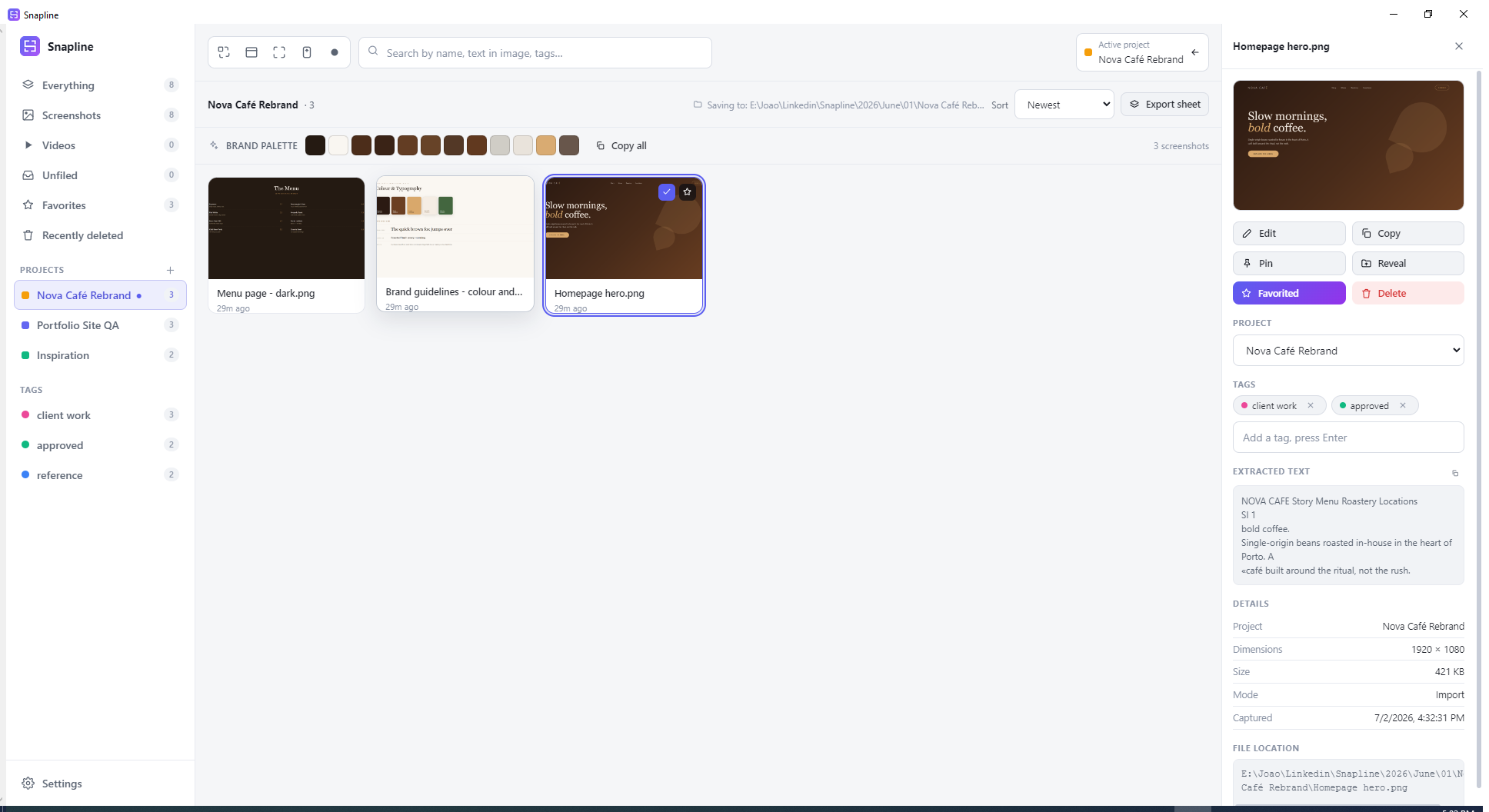
Snapline extracts text locally and searches it alongside file names, tags and projects. Type a phrase you remember and find the right capture without uploading it or creating an account.
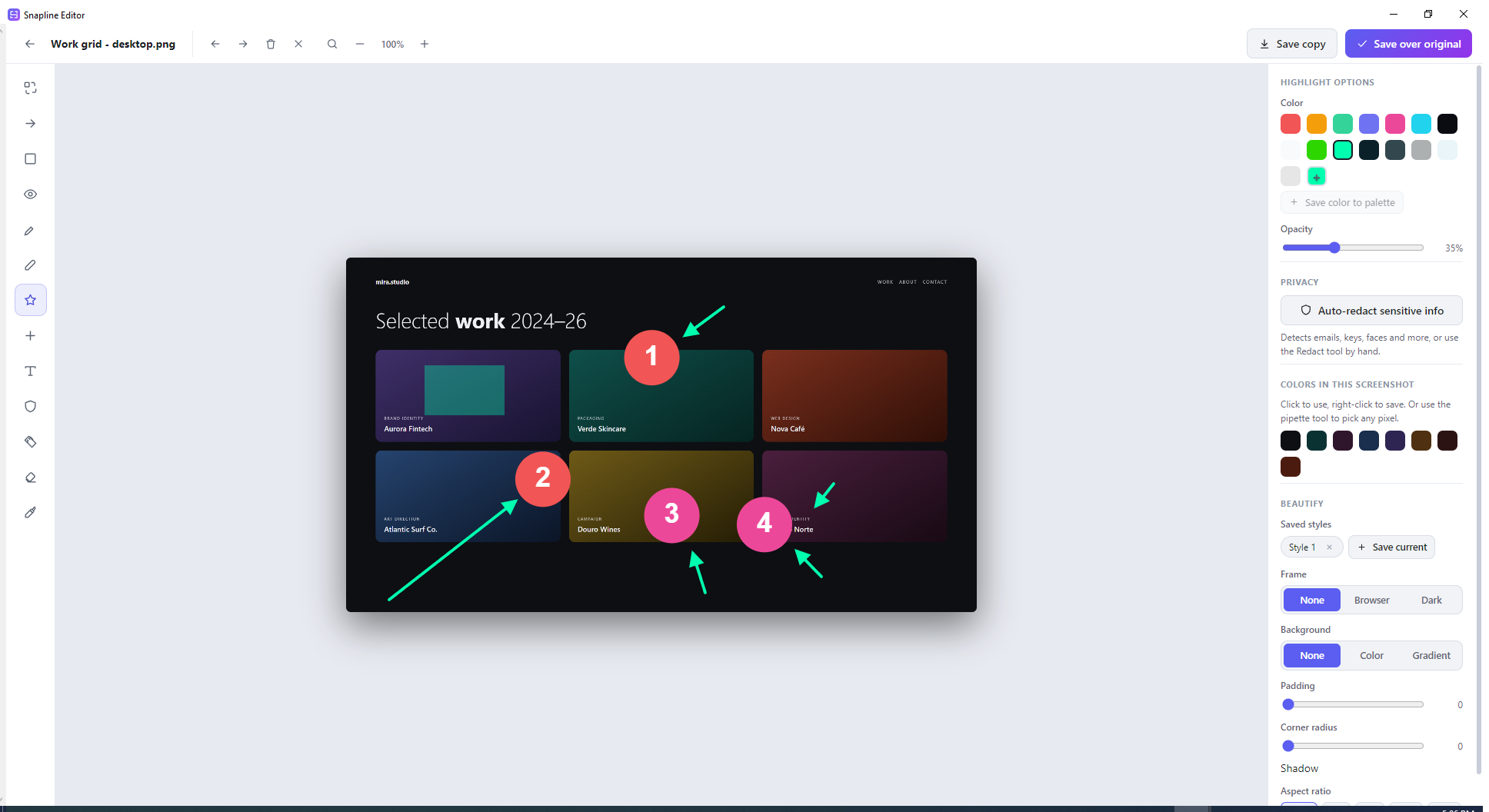
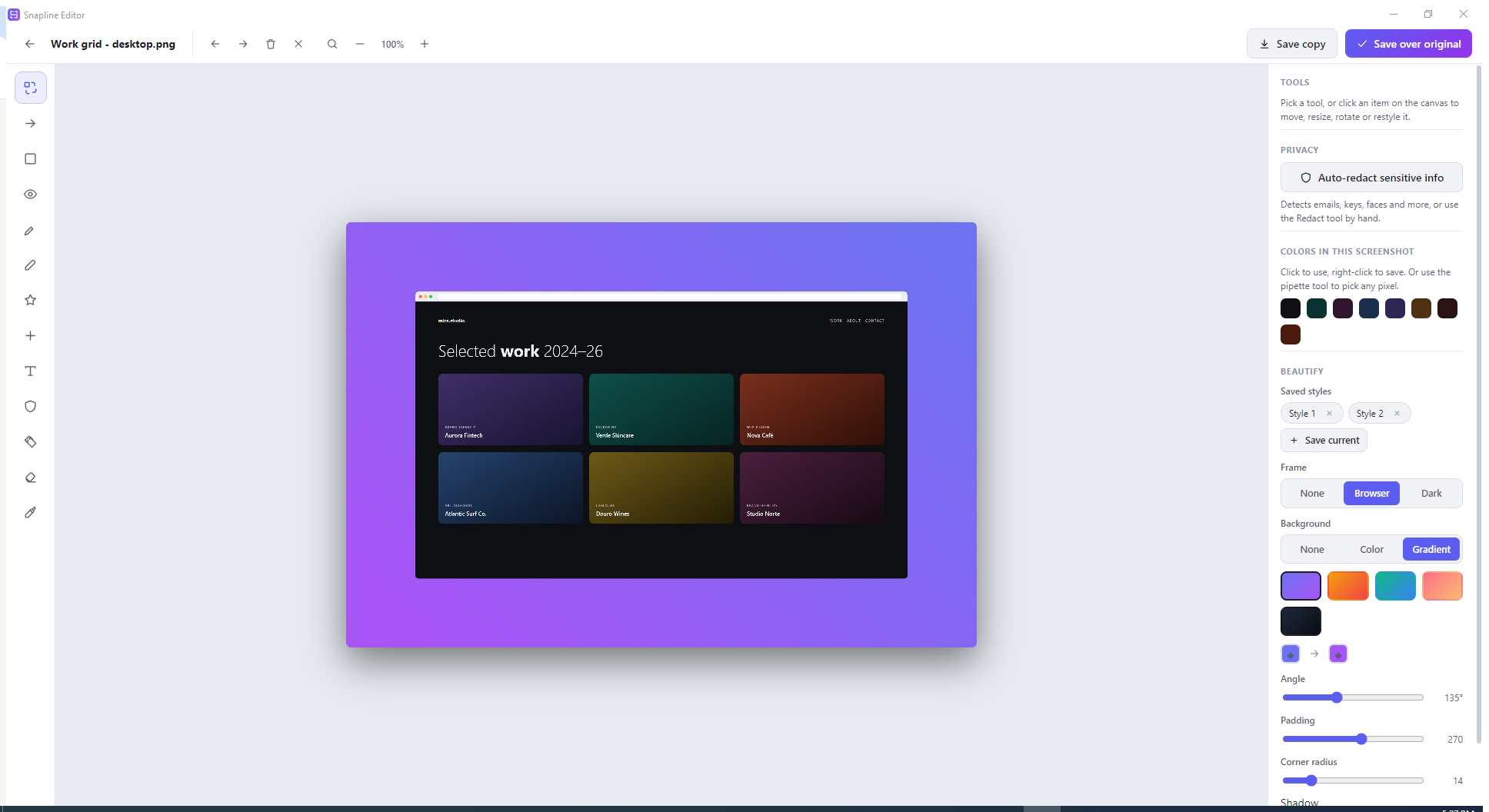
Annotate with arrows, text and numbered steps; redact sensitive details with solid pixels; add branded frames, backgrounds and reusable styles; then save over the original or keep a copy.
Snapline is a Windows product I built and published on Microsoft Store. I also designed its logo.
See my branding work →Open only the lesson you need. Videos stay unloaded until you choose to play them.
This is Snapline, a local-first screenshot manager for Windows. Setup takes one minute. On first launch, Snapline asks for one thing: a storage folder. Pick any folder on your disk. Every capture will live there as real files. Time for your first capture. Press Control-Shift-1 and drag across anything on screen. The crosshair snaps to exact pixels and the magnifier loupe helps you land clean edges. Release and the shot is saved instantly, straight into your storage folder under the active project. No cloud, no account. The file is already on your disk. By default, the editor opens right after each capture, ready for arrows, text, or a quick crop. Prefer a silent save or a floating pin? Change it in Settings. That is the whole loop: capture it, and it is filed. Next up, the three capture modes and their shortcuts.
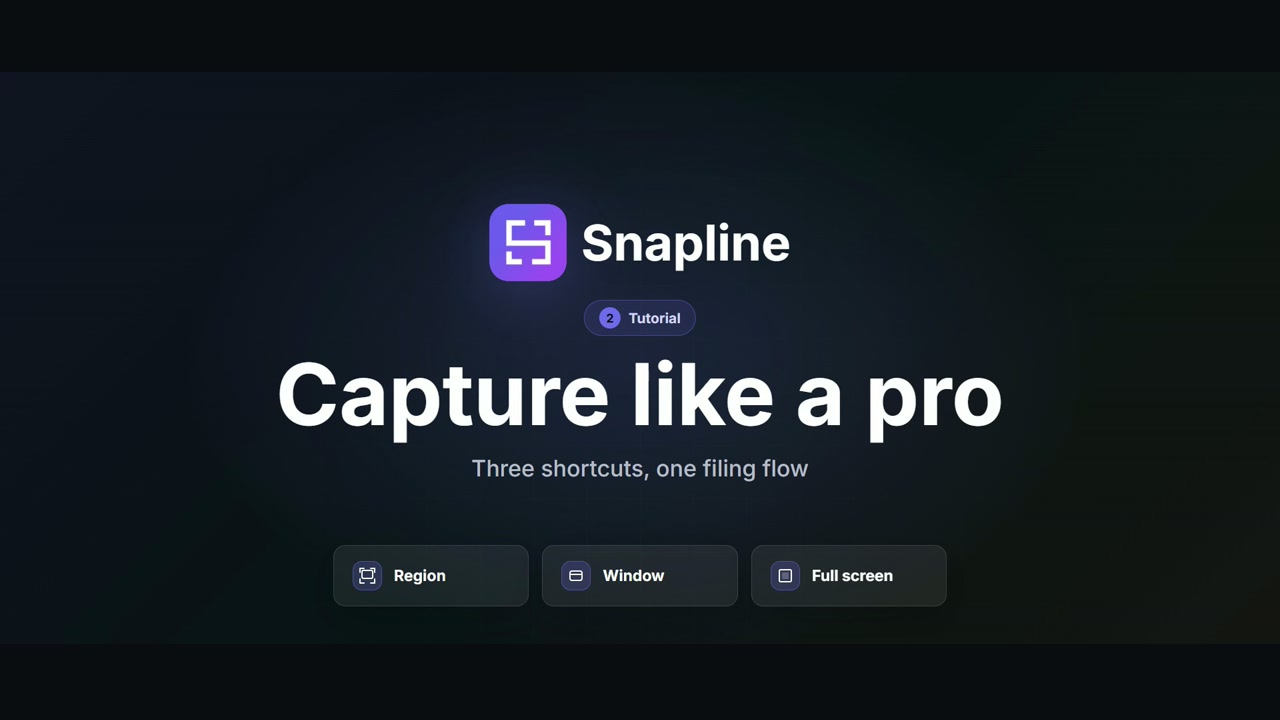
Snapline has three capture modes, each one shortcut away. Control-Shift-1 captures a region. Control-Shift-2 picks a window, and Control-Shift-3 grabs the full screen. Every mode files the shot the exact same way. Window mode shows a live picker. Click any window thumbnail and Snapline captures it at native resolution, even on multiple monitors, sharp enough to zoom into later. The tray menu is your control center. Set the active project there, and every new capture files itself into it automatically. Switching client work takes two clicks. Two more tricks: Pin floats a screenshot always on top, perfect for copying values between apps. And every capture can also land on your clipboard, ready to paste anywhere. Region, window, full screen. One shortcut each. Filed automatically. Copy it if you want. Next video: projects, tags and search that reads your screenshots.
Screenshots pile up fast. Snapline keeps them organized in projects and finds them again by their content. Projects are real folders on your disk, not a hidden database. Create one per client or per job and drag any screenshot between them. The files move with it. Tags cut across projects. Mark shots as client work, approved or reference, and favorite the ones you return to. One click filters the whole library. Now the best part: Snapline reads the text inside every screenshot with local OCR. Type invoice, and it finds the shot with the word invoice printed in the image, not just in file names. Search also covers names, tags and projects at once, so one search box reaches your whole archive. The text is extracted on your machine. Nothing ever leaves it. Projects for structure, tags for context, search for everything else. Your library stays findable at any size. Next: the editor, annotate, redact and beautify.
Every capture can go straight into the editor. Annotate with arrows, boxes, text and numbered steps. Step numbers increment on their own, so building a walkthrough is just click, click, click. Everything stays editable until you save. Sharing something sensitive? The Redact tool blocks out emails, keys or faces with solid pixels, not a blur that can be reversed. Auto Redact finds the sensitive parts for you, right on your machine. Then make it presentation-ready. Beautify adds a gradient background, padding, and a browser or dark window frame around your shot. Pull colors straight from the image or use your saved brand palette. Found a look you like? Save it as a preset and apply it to every future screenshot in one click. Consistent, branded captures without repeating the setup. Save over the original or keep a copy. Either way, the file stays on your disk. Next video: recording your screen and stitching scrolling pages.
Some things need motion. Snapline records your screen too, and it stitches scrolling pages. Press Control-Shift-R to record. You get real MP4 files with four audio choices: no audio, your microphone, system sound, or both mixed together. Perfect for demos with commentary over app audio. A small control pill shows the timer while you work. Stop, and the recording files itself into your project like any screenshot: searchable and organized. For pages taller than your screen, use Scrolling Capture. You scroll at your own pace, and Snapline stitches the frames into one seamless, full-length image. Great for web pages and long documents. And if you delete something by mistake, relax. Deleted captures go to Recently Deleted for 30 days, with an Undo button right on the toast. Nothing is lost by accident. That is Snapline: capture, organize, find, polish and record, all local-first. No cloud, no account, your files on your disk. Get Snapline free on the Microsoft Store.
Local-first, precisely: Core capture, recordings, editing, project files and offline OCR remain on-device. Optional AI enrichment and Auto Redact are off by default and send only a selected image directly to the provider you configure; the developer does not receive it.
Listed in Productivity on Microsoft Store and published by João Queirós. Full product details, feature tour, and FAQs live on the official site: snapline.joaoqueiros.com.
Get Snapline for Windows and keep screenshots, recordings, extracted text and project files under your control.
Add your name and email to unlock recording.
Your recording is emailed to me and kept on this site's server for 12 months, then deleted. Privacy policy.
Thanks for your voice message. I listen to every one myself and I will get back to you within one business day.
Explore João's services and public work, or arrange a free 30-minute consultation.
Choose a time with Cal.com. Your booking status is shown there. No calendar details are shared with this assistant.
Open booking in a new tabWhen enabled, each question is processed by Cloudflare AI and checked for abuse with Turnstile. No chat history is stored by this app. Please leave out private information.
Prepared answers · Public information