ChatGPT Work is OpenAI's clearest move yet from "answer my question" to "take this project and help me finish it."
The launch matters because it brings several surfaces into one workflow: web, mobile, desktop, plugins, files, local projects, scheduled tasks, Sites, Appshots, Computer Use, browser use, and Codex. The useful question is no longer "can ChatGPT summarize this?" It is "what work can I safely delegate, review, and repeat?"
Official source: OpenAI's ChatGPT Work announcement, published July 9, 2026. This post uses OpenAI's announcement and ChatGPT Learn docs as the factual spine, plus the official walkthrough transcript supplied for the video above.
Source Note
OpenAI describes ChatGPT Work as an agent that can take action across apps and files, stay with a project for hours, and turn a goal into finished work. The launch page says GPT-5.6 powers the experience, and the Learn docs describe Work as a mode for substantial tasks that use multiple sources, plugins, tools, or steps.
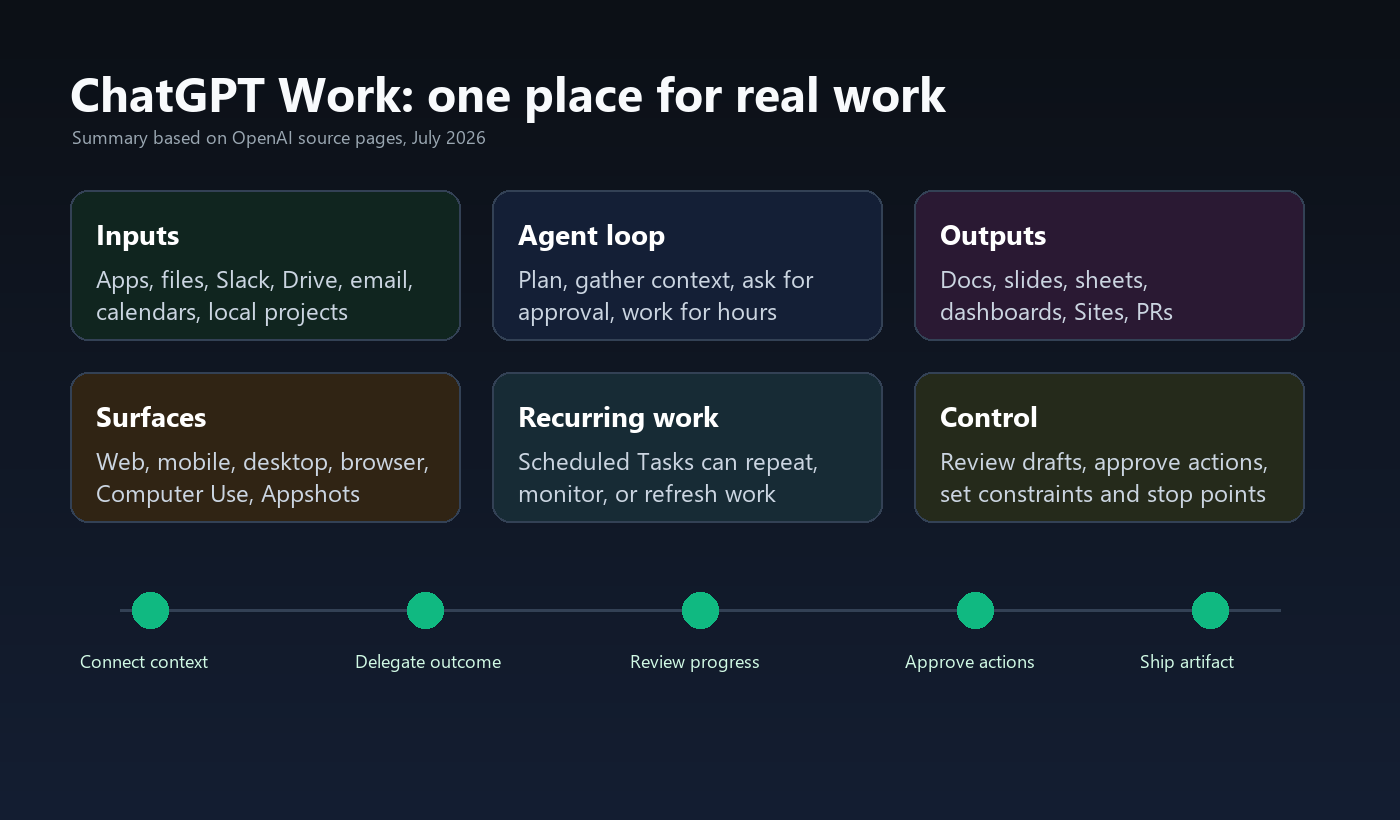
A practical caveat: this is not "press one button and remove the team." The good version is supervised delegation. You give the outcome, the sources, the boundaries, the review criteria, and the stop points. ChatGPT does the gathering, drafting, tool use, and iteration inside those boundaries.
Link Map
| Resource | Status | Why it matters |
|---|---|---|
| ChatGPT Work announcement | Official OpenAI launch | Best source for the product framing: apps, files, workflows, deliverables, Sites, governance, availability, and pricing notes. |
| Get started with Work | Official docs | Use for examples, best practices, prompts, and when to choose Work instead of Chat. |
| ChatGPT desktop app | Official docs | Explains the desktop surface for projects, files, browser, Computer Use, scheduled work, and Codex. |
| Scheduled tasks | Official docs | Important for recurring briefs, monitoring, refresh jobs, and local project scheduling. |
| Sites | Official docs | Turns prompts or compatible projects into hosted websites, apps, games, dashboards, and internal tools. |
| Appshots | Official docs | Lets desktop users send the frontmost Mac app window to a task as visual and text context. |
| Models and reasoning | Official docs | Explains Sol, Terra, Luna, reasoning levels, max, and ultra mode. |
| GPT-5.6 launch | Official OpenAI release | Explains the model family powering Work and the performance/cost claims behind it. |
| Get started with ChatGPT Work | Official walkthrough video | Shows calendar, Slack, Drive, marketing, analytics, Sites, Appshots, Computer Use, and Codex in one flow. |
What OpenAI Launched
The official announcement has three layers.
First, ChatGPT Work is a new agentic mode in ChatGPT. It can gather context from tools and files, create finished materials, break complex projects into steps, and keep working while you answer questions or approve actions.
Second, Codex technology is now part of the broader ChatGPT work surface. OpenAI says the Codex app is merging into the new ChatGPT desktop app. Developers still get a dedicated coding experience, but the broader direction is one app where Work, Codex, Scheduled, Sites, browser use, local files, and project context sit together.
Third, Work is powered by GPT-5.6. That matters because the product depends on long-running reasoning, tool use, design judgment, spreadsheet/doc/deck generation, computer use, and careful handoff between planning and execution.
What Changed
The old ChatGPT mental model was: open a chat, ask a question, copy the answer somewhere else.
The ChatGPT Work model is: connect the sources, define the outcome, let the agent gather context, produce the artifact, and keep a human in the review loop. The difference sounds small until you apply it to real work. A month-end variance report, campaign deck, customer feedback dashboard, or product launch hub is not a single answer. It is a chain of retrieval, judgment, formatting, checking, revision, and sharing.
The official demo is useful because it does not show one magic trick. It shows a sequence:
- Ask Work to prepare the day from calendar, Slack, and Drive.
- Turn that into a recurring morning Chief of Staff briefing.
- Move the same work from web to mobile to desktop.
- Create brand-consistent campaign ideas and a launch deck.
- Pull product launch metrics into analysis and a dashboard.
- Publish the dashboard with Sites.
- Use Appshots and Computer Use to inspect a mobile onboarding bug.
- Switch to Codex to prepare a fix and review the diff.
The Workflows In The Demo
The best way to understand ChatGPT Work is by workflow type, not by feature list.
| Workflow | What ChatGPT Work does | Human role |
|---|---|---|
| Daily briefing | Reads connected calendar, Slack, and Drive context and turns it into preparation notes. | Decide what sources are allowed and what counts as a useful briefing. |
| Marketing launch | Uses brand inputs, generated visuals, mood boards, and source material to draft a review deck. | Approve the positioning, reject weak concepts, and protect brand taste. |
| Data analysis | Pulls metrics and feedback together, flags an anomaly, then builds a dashboard. | Check data definitions, segmentation, and whether the conclusion is supported. |
| Publishing | Publishes a dashboard through Sites and can keep it refreshed. | Review what is public, what is internal, and what data is safe to expose. |
| UX debugging | Uses Appshots and Computer Use to inspect the app state and compare flows across countries. | Confirm the user path, expected behavior, and whether automation should control the app. |
| Code fix | Switches into Codex, prepares a validation fix, and presents the diff for review. | Review the code, tests, and deployment risk before merging. |
Why Desktop Matters
Web and mobile are enough for a lot of knowledge work. Desktop changes the category because it gives ChatGPT a project surface closer to where work actually lives: local folders, app windows, browser sessions, files, developer projects, and reviewable diffs.
Appshots are the small feature that may matter more than they look. Instead of explaining a broken screen, spreadsheet, email, app state, error, or design preview, you can send the current app window as context. The docs describe it as a frontmost-window capture with visible image context and available text. That is especially useful when the context is easier to show than to describe.
Computer Use is the heavier version: when a plugin is unavailable or the work depends on an app UI, ChatGPT can interact with the computer or browser under the permissions you grant. That is powerful, and it is exactly why approvals and narrow scopes matter.
Scheduled Work
Scheduled Tasks are the part to watch for real teams. A one-off answer saves minutes. A recurring workflow can save hours every week.
The docs describe scheduled tasks that can run once, on a schedule, when an event occurs, or while monitoring for changes. In the desktop app, scheduled tasks can work with local projects and run in the project directory or an isolated worktree. On the web, they can use uploaded context and connected tools, but not a direct local folder.
Good scheduled work has a durable prompt:
Every Monday morning, review new updates from @Slack and @Google Drive for [project].
Refresh the meeting agenda with decisions, blockers, owners, and open questions.
Send me a draft before sharing it.
That prompt is useful because it names the cadence, sources, artifact, decision fields, and human review gate.
What Builders Should Try
Start with a workflow that is boring but valuable. The best first tests are not dramatic. They are repeatable, source-heavy, and reviewable.
- Morning operator brief. Calendar, inbox, Slack, tasks, open blockers, and prep notes.
- Weekly sales prep. CRM notes, meeting recordings, account research, draft questions, and follow-up drafts.
- Launch dashboard. Metrics, user feedback, campaign notes, and an internal Site for review.
- Bug triage. Appshot, reproduction path, browser inspection, issue write-up, and Codex diff.
- Research-to-deck. Source folder, template deck, evidence table, eight slides, and unsupported-claim flags.
- Content refresh. Search Console notes, product updates, customer questions, source links, draft page updates.
The builder rule: do not start by asking for a vague "strategy." Start by handing over a recurring workflow with clear inputs, an existing example, and review criteria.
Guardrails
ChatGPT Work gets more valuable as it gains context. It also gets riskier. Treat it like an employee with tools, not a passive text box.
- Use the smallest set of plugins needed for the task.
- Tell it which sources are allowed and which are off limits.
- Ask it to show a plan before creating the final artifact.
- Make it flag unsupported claims and missing information.
- Keep send, publish, delete, payment, and external-message actions behind approval.
- For scheduled work, review the first few runs before trusting the cadence.
- For local projects, keep work in Git and review diffs before merge.
The business opportunity is not "AI does everything." It is designing the repeatable work package: context, permissions, review gates, templates, examples, and final-quality checks.
Sources
- OpenAI: ChatGPT is now a partner for your most ambitious work
- ChatGPT Learn: Get started with Work
- ChatGPT Learn: ChatGPT desktop app
- ChatGPT Learn: Scheduled tasks
- ChatGPT Learn: Sites
- ChatGPT Learn: Appshots
- ChatGPT Learn: Models
- OpenAI: GPT-5.6
- Official video: Get started with ChatGPT Work
CTA: Pick one repeatable workflow with known inputs and a reviewable output. Give ChatGPT Work the sources, constraints, example output, and approval gates, then judge it by the finished artifact, not the prompt count.