Codex on Windows just became more useful for the kind of work that does not live cleanly in a terminal. OpenAI's May 29, 2026 release notes say Codex now supports Computer Use on Windows for eligible users, plus remote control of Windows workflows from ChatGPT on iOS or Android, or from Codex on Mac.
That is not just a convenience feature. It changes the operating pattern. Codex can work on a Windows machine that has the project files, shell, local app server, plugins, credentials, and desktop apps, while you check progress and steer the task from your phone.
The practical version: your laptop becomes the host environment, and your phone becomes the steering wheel. Useful, powerful, and absolutely something that needs boundaries.
What shipped
The verified release note is straightforward: Codex can now see, click, and type in Windows applications from the Codex app for eligible users. OpenAI also says users can start work on a Windows machine and use ChatGPT mobile or Codex on Mac to check progress, continue the thread, respond to prompts, and steer work while away from the desk.
There are three important details inside that sentence.
- The Windows machine remains the host. Files, shell commands, local context, app server, plugins, MCP servers, and desktop apps come from the connected Windows computer.
- The phone is not doing the local work. It sends prompts, approvals, and follow-up messages to the host.
- Availability is limited at launch. OpenAI says Windows Computer Use is unavailable in the European Economic Area, the United Kingdom, and Switzerland at launch.
That last point matters for JQ AI SYSTEMS readers in Portugal and the rest of the EEA. You can still understand the workflow pattern now, but access may depend on region, account, workspace, and rollout status.
How Windows Computer Use works
In OpenAI's Codex docs, Computer Use is the desktop-control surface. Codex can view and operate graphical interfaces on macOS or Windows when a task cannot be handled well through files, terminal output, plugins, or structured integrations.
Good examples include reproducing a bug in a desktop UI, changing settings in an app, checking a Windows application, using a data source that is only visible through an app, or moving through a workflow that spans more than one GUI.
The setup pattern is simple:
- Open Codex settings.
- Go to Computer Use.
- Install or enable the Computer Use plugin.
- Start a new task and mention
@Computeror a specific app name, such as@Chrome. - Describe the exact app, window, and flow Codex should operate.
The Windows-specific limitation is important: Computer Use on Windows runs on the active desktop. Codex can move the pointer, type, and take over foreground input while it works. This is not a quiet background task while you keep using the same Windows session.
So the most realistic workflow is not "Codex works invisibly while I use the same laptop." It is closer to: give Codex a bounded task, leave the host machine unlocked and connected, and monitor from your phone or another device.
Why mobile access matters
Mobile access is the part that changes the work rhythm. OpenAI's remote-connection docs say mobile setup now supports Codex app hosts on macOS and Windows. You start setup in the Codex app, scan a QR code with your phone, and finish connecting through ChatGPT.
Once connected, the host appears in Codex on your phone. The phone can send prompts, approvals, and follow-up instructions. The connected host supplies the actual environment: repo files, shell, plugins, MCP servers, browser access, Computer Use configuration, signed-in websites, and desktop apps.
This is useful because long-running agent work usually fails at the decision points, not the typing. Codex gets stuck because it needs approval, a product choice, a clarification, or a review. Mobile access lets you keep those tasks alive while you are away from the desk.
For example:
- Codex reproduces a Windows-only bug while you are in another room.
- You approve a safe next step from your phone.
- Codex continues the same thread on the Windows host.
- You come back to screenshots, terminal output, test results, and a diff instead of a half-finished task.
That is the useful pattern. Not full autonomy. Better continuity.
Computer Use, Chrome, or in-app browser?
The mistake would be using Computer Use for every task just because it feels powerful. Codex now has several surfaces, and the safest one is usually the most structured one that can finish the job.
| Surface | Use it when | Why |
|---|---|---|
| In-app browser | You are previewing localhost, public pages, or file-backed web previews. | It keeps visual web testing inside the Codex thread without using your Chrome profile. |
| Codex Chrome extension | The task needs a signed-in website, browser state, or extension-dependent flow. | It can use Chrome with website approvals and browser permissions, but page content should be treated as untrusted. |
| Computer Use | The task depends on a desktop app or a GUI workflow that cannot be verified through structured tools. | Codex can see and operate apps visually, but it also touches app and system state outside the project workspace. |
| Plugin or MCP integration | A dedicated tool exists for the app or data source. | Structured access is usually more repeatable, auditable, and permissionable than visual clicking. |
My rule: if there is a plugin, use the plugin. If it is a local web app, use the in-app browser. If it needs your signed-in browser, consider Chrome. If it needs a real desktop app, use Computer Use.
Safety and approvals
Computer Use is different from normal coding-agent work because the agent is no longer only editing files or running commands. It can view screen content, take screenshots, interact with windows and menus, type into fields, and touch clipboard state in an allowed app.
That means the safety model should be more conservative.
- Close sensitive apps. Do not leave banking, password managers, private client docs, or unrelated inboxes visible unless the task explicitly needs them.
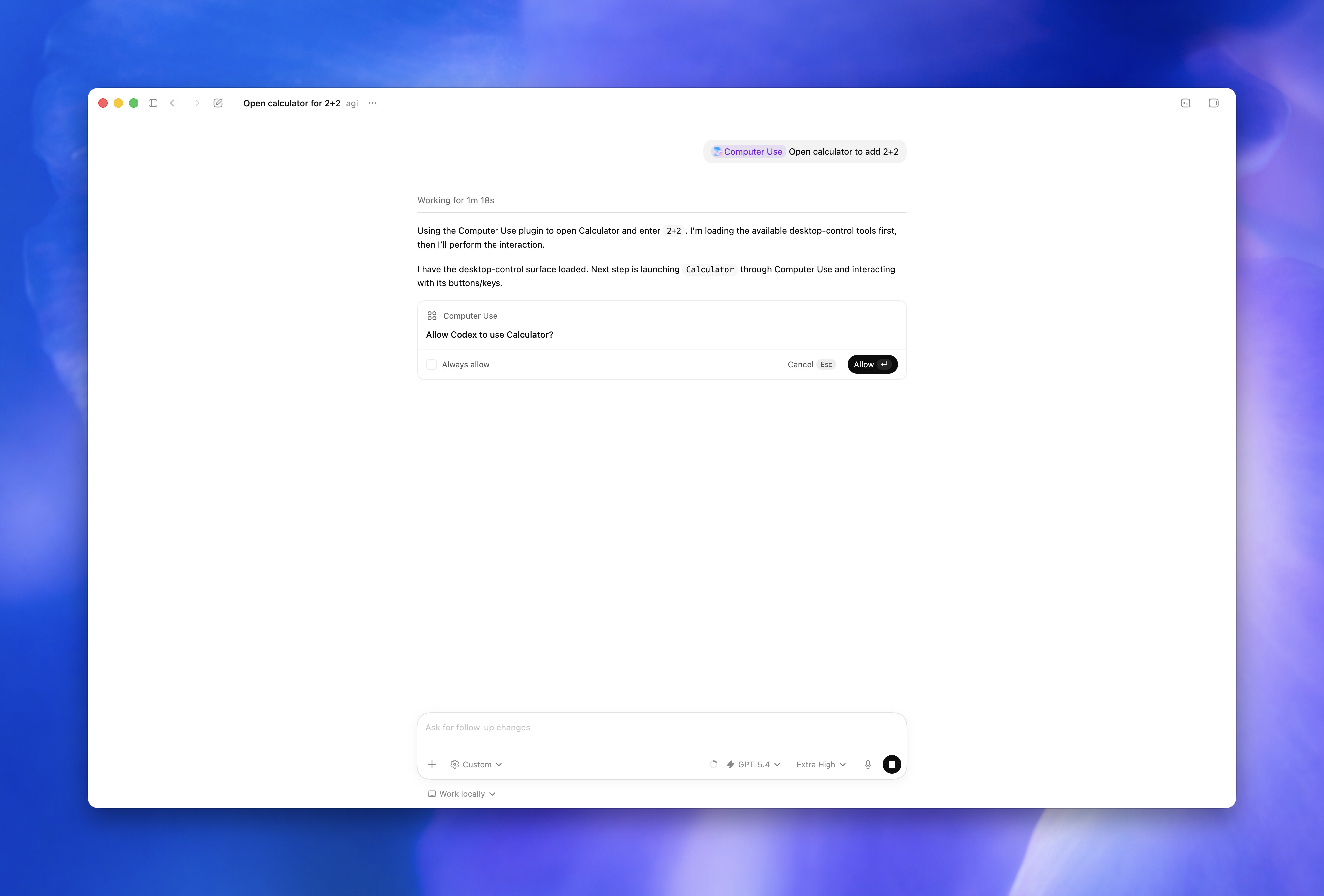
- Approve apps deliberately. Codex asks before it can use an app. Use "Always allow" only for apps you are comfortable letting Codex use again.
- Keep the task narrow. "Open Calculator and test the onboarding shortcut" is safer than "clean up my computer."
- Watch payment, credential, privacy, network, and account settings. Stay present for sensitive flows.
- Take over when needed. If Codex starts interacting with the wrong window, stop the task.
- Keep code review separate. Changes made through desktop apps may not appear in the review pane until saved to disk and tracked by the project.
This connects directly to the principle in Safe Coding Agents Need Logs, Sandboxes, and Review Queues: more autonomy is fine only when the work has boundaries, logs, and review gates.
What to try first
I would not start with anything involving money, production credentials, customer records, or account settings. Start with tasks that are visible, bounded, and recoverable.
Good first tests:
- Desktop app bug reproduction: ask Codex to open the Windows app, reproduce a UI bug, then report what it saw before editing code.
- Installer or setup flow: let Codex test whether a Windows setup path matches the README.
- Visual QA: ask it to compare the local app against a screenshot and mark mismatches.
- Settings validation: have it verify a non-sensitive setting path in a desktop tool.
- Long-running local task: start a build or test flow on Windows and use mobile access to answer prompts while you step away.
The useful mental model is a junior operator with local hands, not a magic background worker. Codex can click and type, but you still own scope, permission, review, and rollback.
Builder checklist
Before you give Codex a Windows Computer Use task, run this checklist:
- Host: Is the Windows machine awake, unlocked, online, and running the Codex app?
- Region: Is Computer Use available for your account and region?
- Scope: Did you name the exact app, window, and desired outcome?
- Surface: Is Computer Use really needed, or would in-app browser, Chrome, plugin, MCP, shell, or file access be safer?
- Privacy: Are unrelated sensitive apps closed?
- Approval: Are you ready to review app and action prompts from desktop or mobile?
- Review: Will the output be checked before merge, deploy, send, submit, or purchase?
- Fallback: Do you know how to stop the task and take over the computer?
CTA: Let Codex work away from your desk, but give it bounded tasks, visible permissions, and a review path before it controls local apps.
Sources
- OpenAI video: New features for Codex on Windows
- OpenAI Codex docs: Computer Use
- OpenAI Codex docs: Remote connections
- OpenAI Codex docs: Chrome extension
- OpenAI Codex docs: In-app browser
- OpenAI Help Center: ChatGPT release notes
- OpenAI: Work with Codex from anywhere
The big shift is simple: Codex is no longer only a coding assistant inside a repo. It is becoming a local work surface that can touch browsers, desktop apps, plugins, shells, mobile approvals, and review flows. That is more useful than another benchmark screenshot, and it is also why the safety layer matters more now.