Your phone.
Your webcam.
Turn an Android phone into a high-quality PC webcam, and optional microphone, for Google Meet, Zoom, or Teams over USB or Wi-Fi through OBS Virtual Camera.
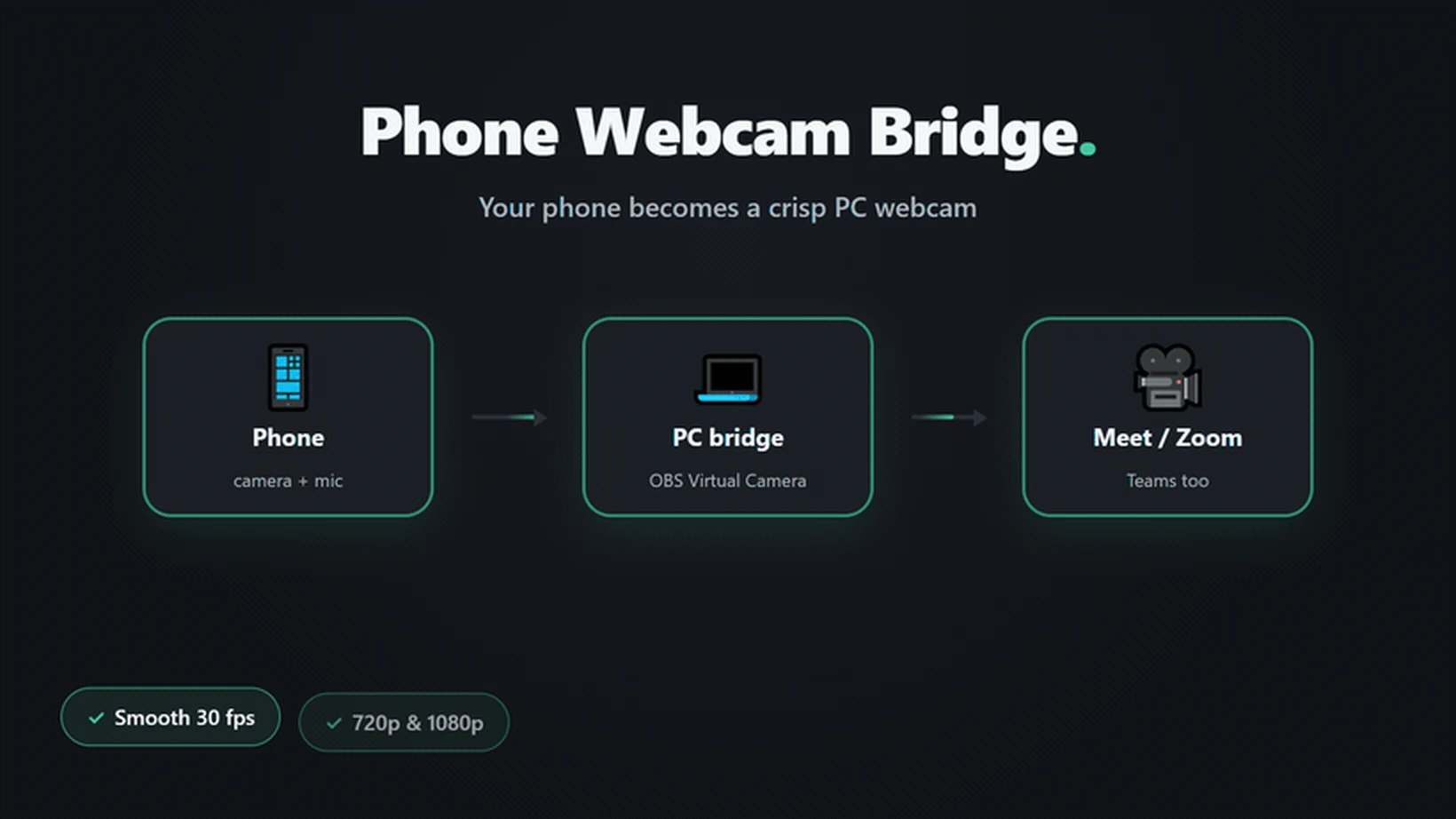
See the whole route in motion.
The camera feed stays on your devices from the phone to the meeting app.
What is Phone Webcam Bridge?
Phone Webcam Bridge is a local Android-to-Windows camera system for video meetings. It streams the phone camera over USB or Wi-Fi, gives the PC control over zoom and exposure, and passes the result to Google Meet, Zoom, Teams, and similar apps through OBS Virtual Camera. No account, hosted server, or telemetry is required.
What was broken.
A capable Android phone already has the camera hardware needed for a clear meeting feed, but Windows meeting apps expect a standard webcam device. The missing piece is a dependable route between the phone camera and the camera picker inside Meet, Zoom, or Teams.
That route also needs to work in ordinary conditions: a USB cable when reliability matters, Wi-Fi when flexibility matters, useful controls on the PC, and no hosted account sitting between the camera and the call.
What was built.
Phone Webcam Bridge keeps the complete video path local. The Android app captures the front or back camera and streams it over USB or the local Wi-Fi network. A Node.js and TypeScript bridge on Windows normalizes the feed, exposes zoom and exposure controls, and sends it to OBS Virtual Camera.
Meeting apps then see OBS Virtual Camera as a normal camera option. Video works on its own. The phone microphone is optional and uses VB-CABLE through OBS, with headphones recommended to prevent echo.
Four local steps, one meeting camera.
The camera path stays under your control.
Optional phone microphone: install VB-CABLE, route audio through OBS, and use headphones to prevent echo. The normal PC microphone remains the simplest default.
See it in action.
A short view of the phone-to-PC flow, available profiles, and the local meeting-camera route.

Built with.
What changed.
The result is a practical way to reuse a capable Android camera for everyday meetings without sending the feed through an external service. USB provides the dependable default, Wi-Fi adds flexibility, and the PC dashboard keeps the useful controls close to the meeting window.
Put your Android camera
into your next meeting.
Download the APK from the public release, then follow the user guide to set up the Windows bridge and OBS Virtual Camera.